The workspace at a glance
When you open a project you land in the workspace — everything you need to read, edit, check, and explore your tree on one screen. This page is a quick map; each element links to its full guide.
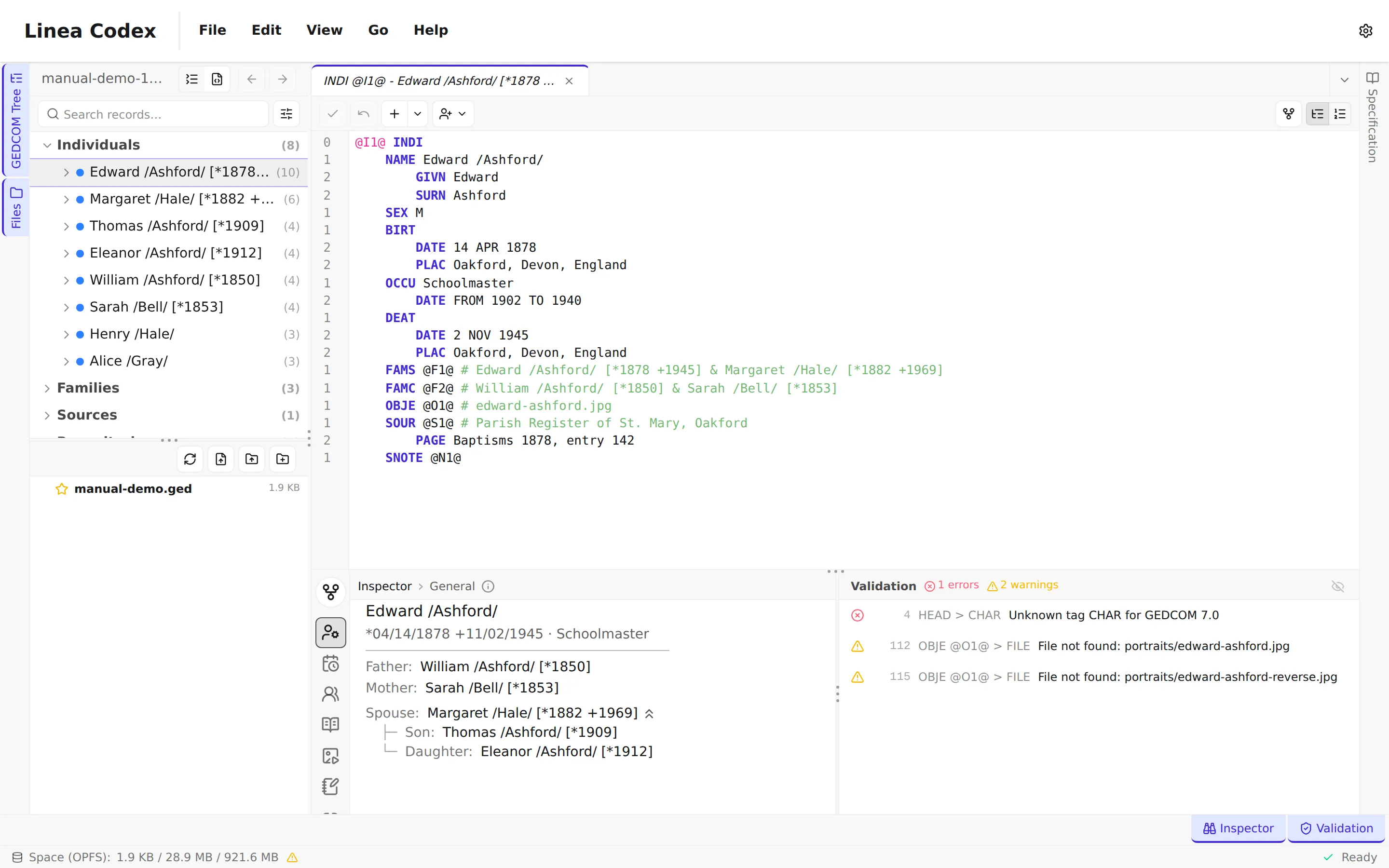
The panels
Section titled “The panels”- Menu bar & toolbar (top) — the menus (File, Edit, View, and more) hold every command. A Help menu opens the GEDCOM specification, the About page, and Check for updates, and the Settings button sits at the right. See Settings & preferences.
- Tree view (left) — browse all your records, grouped by type (people, families, sources, …). This is your main way to find and select records. → Navigating your tree
- File manager (left) — toggled alongside the tree from the left rail; shows the files that make up your project, including any media extracted from the document. → Working with media & files
- Editor (centre) — view and edit the selected record, either as a structured outline or as raw GEDCOM. A tab strip above it keeps several records — and pedigrees — open at once. This is where most editing happens. → The Editor
- Inspector (bottom, below the editor) — a clean, structured summary of the selected record, organised into tabs. → The Inspector and its tabs
- Validation panel (bottom, beside the inspector) — every problem Linea Codex finds in your file: errors, warnings, and hints. Show or hide the inspector and validation independently from the footer. → Validation
- Spec viewer (right) — a dockable panel to look up any GEDCOM tag and see what it means and where it’s valid, without leaving the app. → Looking things up: the spec viewer
A typical flow
Section titled “A typical flow”Find a record in the tree, edit it in the editor, confirm the details in the inspector, and keep an eye on the validation panel for anything that needs fixing. When you want to see the shape of a family, open the pedigree view — it opens in its own tab (from the View menu, or the Open Pedigree button when a person is selected).
Each of these has a dedicated guide in Using Linea Codex — follow the links above, or pick a topic from the sidebar.