The pedigree view
Records and lines are the substance of GEDCOM, but a family is easier to understand as a picture. The pedigree view turns the person you’re looking at into the centre of an interactive family chart — ancestors above, descendants below, siblings and spouses alongside — that you can pan, zoom, and walk generation by generation. It opens in its own tab beside your records, so you can explore the shape of a family without losing your place in the tree or editor.
Opening a pedigree
Section titled “Opening a pedigree”The pedigree is always built around one person — the anchor. To open it, first select an individual, then use any of these:
- The Build pedigree view button — an icon button that appears when the selected record is a person, in the editor’s toolbar and at the top of the Inspector.
- The View menu, which carries a Build pedigree command while a person is the active record.
- Right-click a person in the tree and choose Build pedigree (see Navigating your tree).
The pedigree opens in its own tab, labelled for its anchor — Pedigree of … the person’s name. The button is only available on a person; for any other kind of record it’s disabled, with the hint Select an individual to open its pedigree.
Moving around the chart
Section titled “Moving around the chart”The pedigree is a canvas you can pan and zoom freely:
- Pan — drag the background with the mouse, or scroll with a trackpad’s two fingers.
- Zoom — turn the mouse wheel, or hold Opt (Alt on Windows / Linux) and scroll. Zoom is anchored at the pointer, so the spot under your cursor stays put. On a touch screen, pinch to zoom.
A small toolbar gives you the same controls without remembering gestures:
| Control | Does | Keyboard |
|---|---|---|
| Center on anchor | Re-frames the chart on the anchor person | F |
| Fit to screen | Scales the whole chart to fit the canvas | 0 |
| Reset view | Returns to the default zoom, centred on the anchor | — |
| Zoom in / Zoom out | Step the zoom up or down | + / − |
You can also drive the whole chart from the keyboard: the arrow keys move the selection between relatives — Up selects a parent, Down a child, Left and Right move between siblings, and Alt with Left or Right cycles between spouses.
Reading a card
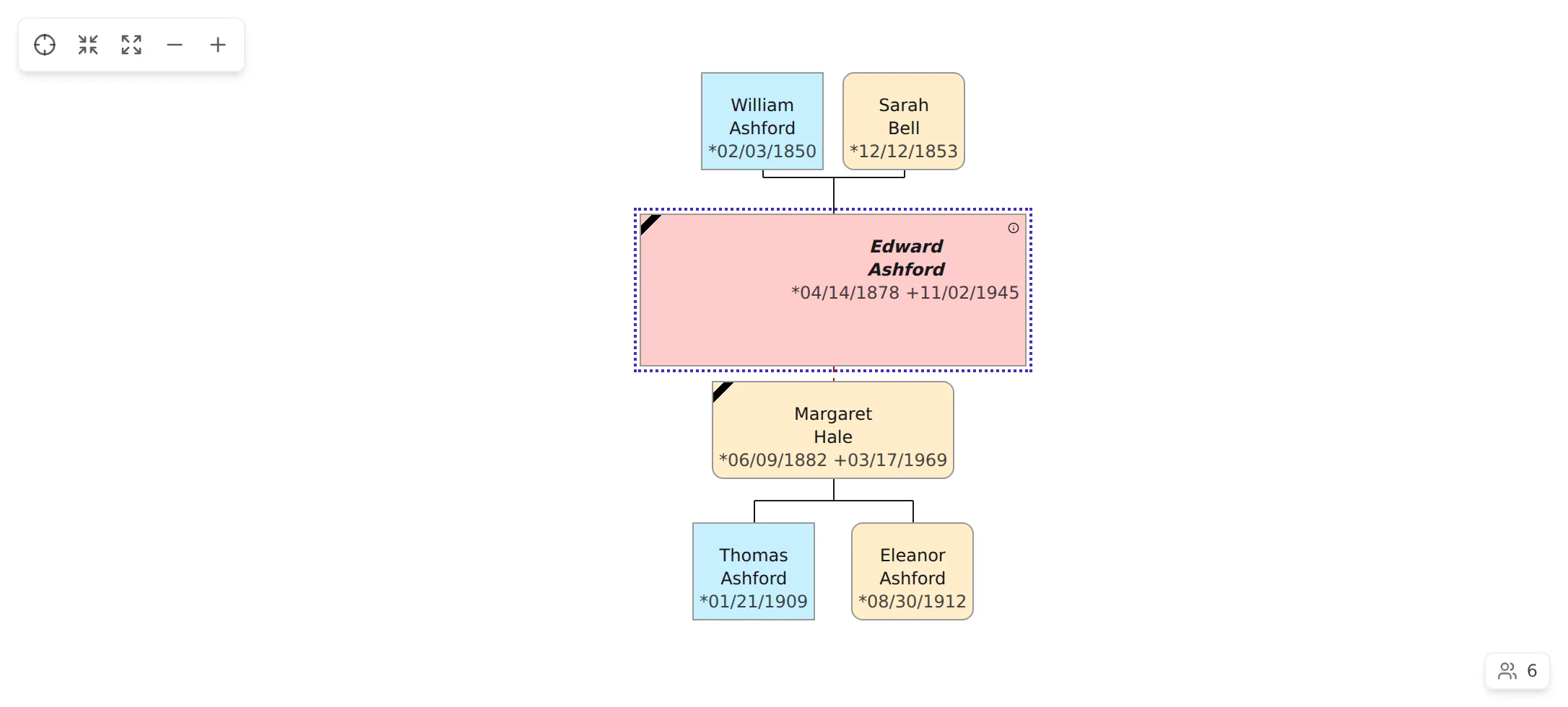
Section titled “Reading a card”Each person is a card showing their name and life dates. A few cues help you read a chart at a glance:
- The anchor — the person the chart is built around — is marked with a distinct, emphasised name.
- The selected card is outlined; exactly one card is selected at a time. Selecting a card shows that person in the Inspector without re-drawing the chart.
- Deceased people carry a small corner ribbon, and the card’s death date reads died … for screen readers.
- A card shows small buttons to Open photo or Open notes when the person has media or notes attached.
A floating person count in the corner tells you how many people the chart is currently showing — “… people displayed” — and it updates as you expand and collapse branches.
Walking the generations
Section titled “Walking the generations”A pedigree doesn’t show your whole tree at once — it grows as you explore. Wherever there are more relatives than are currently drawn, you’ll see a small Expand stub (it names what it will reveal, e.g. Expand: 3 more ancestors or more descendants). Click it to bloom that branch into view. A matching Collapse stub on a branch you’ve opened folds it back down — Collapse this ancestor branch or …descendant branch — keeping the chart focused on what you care about.
Re-anchoring on someone else
Section titled “Re-anchoring on someone else”Clicking a card selects that person but leaves the chart where it is. When you want to rebuild the whole chart around a different person — making them the new anchor — use Build the pedigree tree around this person: it’s offered on the relatives navigator and in the card’s right-click menu, and the chart smoothly re-centres on the new anchor.
Duplicate branches and cycles
Section titled “Duplicate branches and cycles”Real family trees aren’t always neat: the same ancestor can appear on more than one line (pedigree collapse), and cousins can marry. When a person turns up in more than one place, their branch is drawn once and the other spots show a control to cycle to the next occurrence or move the branch here, so you can see the relationship from whichever side you’re working on without the chart drawing the same subtree twice.
Acting on a person from the chart
Section titled “Acting on a person from the chart”Right-click any card for a short menu of actions:
- Go to record — jumps to that person’s record in the editor and tree, so you can edit them.
- Build pedigree — re-anchors the chart on this person (disabled when they’re already the anchor).
- Edit… — edit the person without leaving the pedigree.
- Add relative — start a new father, mother, spouse, son, or daughter for them (see Adding relatives).
- Delete… — remove the person’s record. If you delete the anchor, the pedigree tab closes (its subject is gone); deletion is confirmed first and can be undone.