Validation: reading, fixing, silencing
Linea Codex strives to be as standards-compliant as possible, and validation is how it shows you where your file departs from the GEDCOM specification — so the file you export opens cleanly in other programs. Validation is a single, unified capability: the same checks power the squiggles in the editor and the validation panel at the bottom of the workspace. This page covers reading those results, fixing them, and silencing rules that don’t apply to your work.
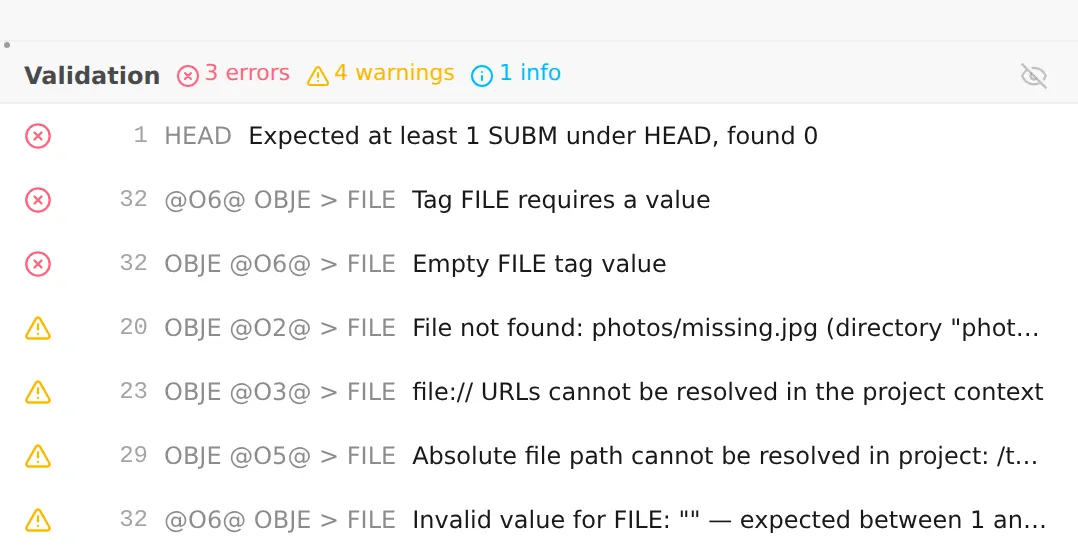
The validation panel
Section titled “The validation panel”The validation panel sits at the bottom of the workspace, beside the inspector; show or hide it from the footer. It lists every problem found in your project, each row showing its severity, the location (record and line), and a message describing the issue. A summary at the top counts them — for example 3 errors · 12 warnings · 5 info.
Three severities, in order of urgency:
- Errors — the file breaks the specification here; another program may reject or misread it.
- Warnings — valid, but likely a mistake or something worth a second look.
- Info — informational hints; advisory only.
Click any item to jump to it — the record opens in the editor and inspector so you can see it in context. With the panel focused you can also walk the list with the arrow keys, and Home / End jump to the first and last issue.
When everything checks out you’ll see No validation issues found; while a check is running, the panel shows Validation in progress….
The same checks, inline in the editor
Section titled “The same checks, inline in the editor”You don’t have to keep the panel open to catch problems. As you work in the editor, the same validation underlines trouble spots and marks them in the gutter — exactly the issues you’d see in the panel for that record. Hover a marker to read the message. The panel checks the whole project; the inline markers cover the record you’re editing, so the two complement each other.
What gets checked
Section titled “What gets checked”Validation looks at more than raw grammar. It covers:
- Structure and grammar — levels, tags, and values that don’t parse as valid GEDCOM.
- Specification rules — tags used where they aren’t allowed, missing required substructures, out-of-range values, and broken cross-references.
- File references —
FILEpaths that don’t point to a file in your project. - Media — problems decoding embedded media, or crop regions that fall outside an image.
Fixing problems
Section titled “Fixing problems”For a handful of issues, the editor offers an inline quick-fix: when a fix is available, the
diagnostic shows a Proposed fixes link you can click — for example Try to resolve this file
reference… or Fix case of this reference when a FILE path doesn’t match a file on disk. These are
convenient spot-fixes for specific, well-defined cases — not a general auto-correct.
For anything broader — renaming a tag across hundreds of records, reshaping a structure, cleaning up a recurring data-entry pattern — the headline tool is the bulk transform rule builder. You describe the change once and apply it everywhere it matches, with a live preview before you commit. Some quick-fixes even hand off to it, opening the transform panel pre-loaded with a rule you can review and run.
When you’re unsure why something is flagged or what the correct structure should be, look the tag up in the embedded spec viewer — it shows what a tag means and where it’s valid.
Silencing rules you don’t need
Section titled “Silencing rules you don’t need”Some rules won’t matter for your project — a warning about a convention you’ve deliberately chosen not to follow, say. You can silence a rule so it stops cluttering the list:
- Right-click the item in the validation panel.
- Choose Silence rule (it names the specific rule).
Silenced issues are hidden from the panel and the editor. A toggle in the panel’s toolbar — Show silenced rules — brings them back temporarily (greyed out) when you want to review what you’ve muted, without un-silencing anything.
To manage everything you’ve silenced in one place, open Settings → Validation Rules. Each silenced rule is listed with its specification reference and the GEDCOM versions it applies to; remove one to bring its checks back, or use Un-silence all to clear the list. Right-clicking a silenced item in the panel and choosing Un-silence rule does the same for that one rule.
Next: when you’re ready to move a file between GEDCOM versions, see Converting GEDCOM versions →.