Settings & preferences
Linea Codex works well out of the box, but a few preferences are worth knowing about — the interface language, how it looks, how your files are written, and which validation rules you’ve chosen to mute. Open them from the Settings button in the toolbar. Settings is organised into sections you pick from a sidebar: Appearance, Editor, Records, Validation Rules, and Advanced.
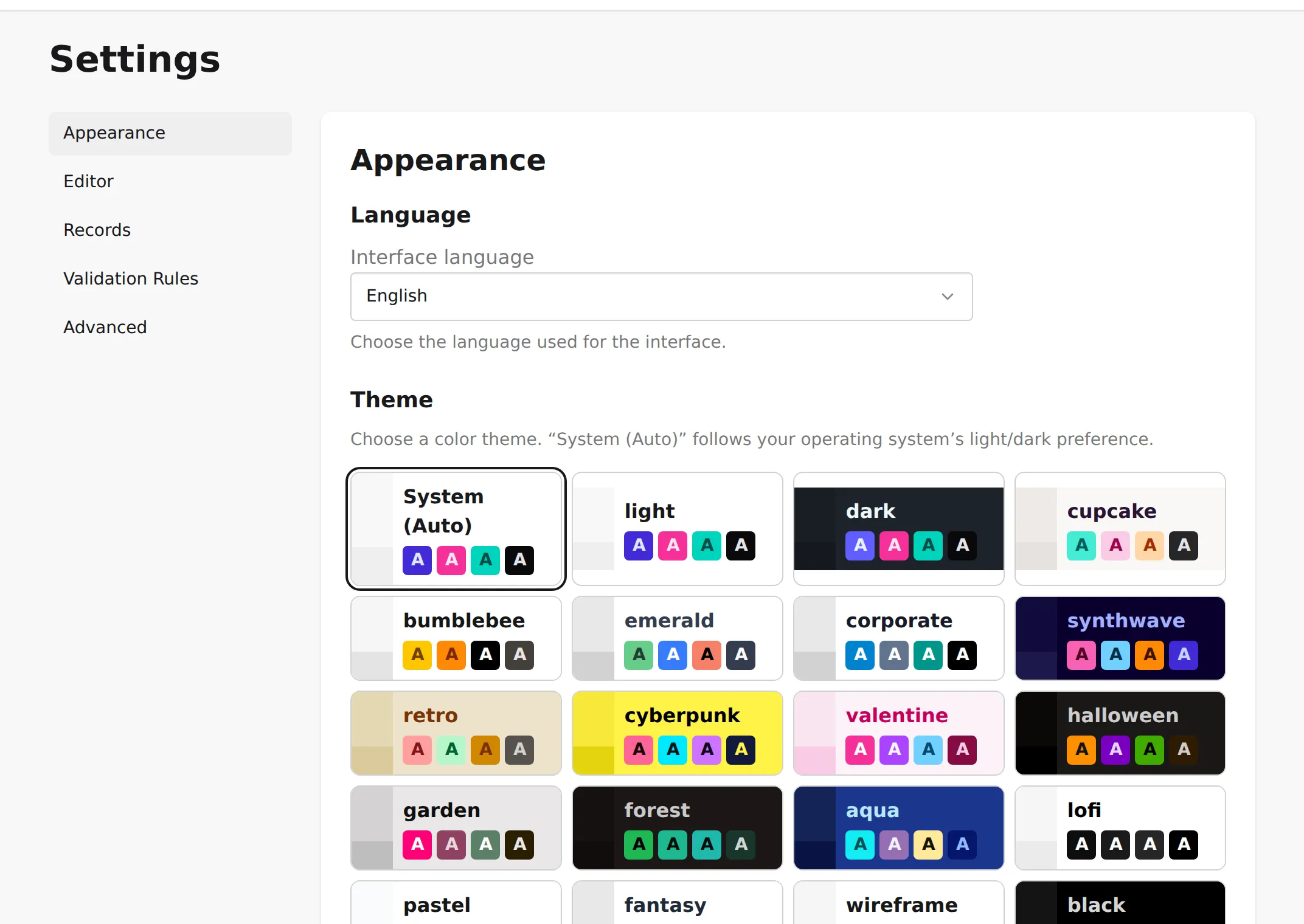
Appearance
Section titled “Appearance”Language
Section titled “Language”The Interface language chooses the language used throughout the app. Linea Codex ships with English, Deutsch, Español, and Русский, and detects your preferred language automatically on first launch — change it here at any time. (GEDCOM tags and version numbers stay in their standard form regardless of language.)
The Theme controls the app’s colour scheme. The default, System (Auto), follows your operating system’s light/dark preference. Below it is a gallery of named themes — Light and Dark, plus many more to suit your taste — that you select by clicking a tile.
Editor
Section titled “Editor”Show xref comments toggles human-readable annotations next to cross-reference (@…@) IDs in the
editor — so a link reads as a name rather than a bare ID. It’s on by
default. See Reference resolution & navigation for how those
links behave.
Records
Section titled “Records”Maximum line length sets where GEDCOM wraps long text values across continuation
(CONC / CONT) lines when your file is written out on save and export. The specification maximum is
255, which is the default; a lower value (down to 40) can make files diff more cleanly when you
round-trip them through other tools. This setting is also referenced from
Saving & exporting.
Validation Rules
Section titled “Validation Rules”This section manages the validation rules you’ve silenced — turned off so they stop appearing in the validation panel and editor. When nothing is silenced it simply says No rules silenced, and reminds you that you silence a rule by right-clicking a warning in the validation panel.
Once you’ve silenced some rules, each appears here listed by its rule identifier, with its specification reference and the GEDCOM versions it applies to. Remove a rule from the list to bring its checks back, or use Un-silence all to clear the list at once. (Un-silencing a single rule is also available by right-clicking it in the validation panel.)
Advanced
Section titled “Advanced”Reset app cache clears the app’s cached program files and reloads the page. Use it if the app seems to be serving an outdated version of itself, or after an update doesn’t take. It’s safe — your projects aren’t affected; only the app’s own cache is cleared. You’ll be asked to confirm first.