Navigating your tree
The tree view on the left is your main way to find and move around your records. It lists everything in your project — people, families, sources, notes, media — and selecting a record here drives the rest of the workspace: the editor, the inspector, and the validation panel all follow your selection.
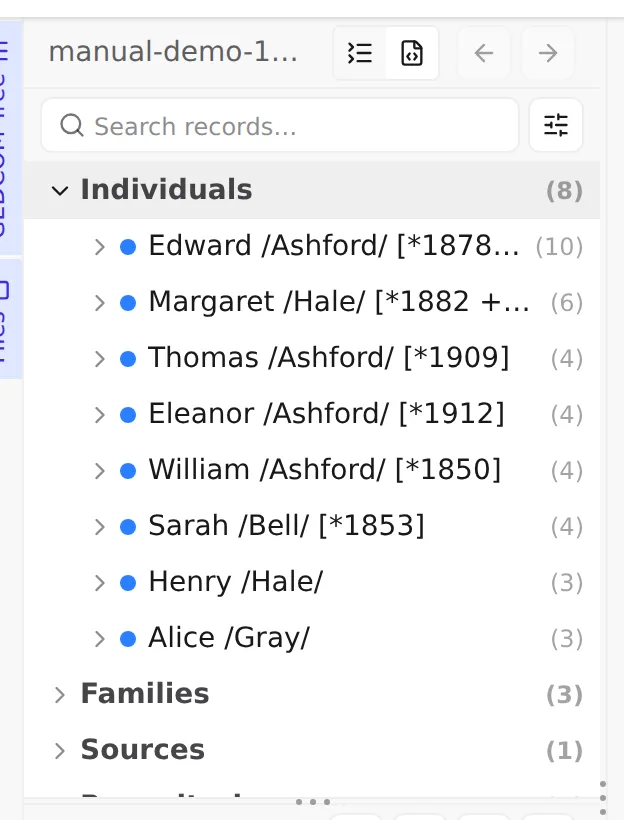
Two ways to view your records
Section titled “Two ways to view your records”A toggle at the top of the panel switches between two perspectives:
- Grouped — records gathered under headings by type: Individuals, Families, Sources, Notes, Multimedia, Repositories, Submitters, and Other. This is the everyday view — collapse the groups you’re not using and expand the ones you are.
- Raw — every record in the order it appears in the file, from the header down to the trailer, with no grouping. Useful when you want to see the document exactly as it’s laid out on disk.
Expand or collapse a group (or any record with children) by clicking the chevron beside it, or by double-clicking the row.
Selecting a record
Section titled “Selecting a record”Click any record to select it. The selected row is highlighted, and the record opens in the editor and inspector. Selecting a record also adds it to your navigation history (see below), so you can always retrace your steps.
You can drive the whole tree from the keyboard:
| Key | Action |
|---|---|
| Up / Down | Move between rows |
| Right | Expand a collapsed row, or step into its first child |
| Left | Collapse a row, or step out to its parent |
| Home / End | Jump to the first / last row |
| Enter | Open the focused record (or toggle a group) |
| Delete / Backspace | Delete the focused record (see Deleting a record) |
Finding a record fast
Section titled “Finding a record fast”A search box sits at the top of the tree. Start typing and the list filters as you go, matching on names, cross-reference IDs, and tags, and automatically expanding to reveal the matches. Press Esc or click the clear button to reset it; if nothing matches you’ll see No matching records found.
This quick filter is for jumping to a record you can already half-name. When you need to find records by criteria — everyone born before 1850, every source missing a citation — reach for Searching, whose results narrow the tree the same way.
Retracing your steps: history
Section titled “Retracing your steps: history”As you select records, Linea Codex remembers where you’ve been. Back and Forward buttons at the top of the tree walk through that history — handy when you follow a link deep into a family and want to return.
| Action | macOS | Windows / Linux |
|---|---|---|
| Back | Cmd+Left | Alt+Left |
| Forward | Cmd+Right | Alt+Right |
| Open the history list | Alt+Shift+Left / Alt+Shift+Right | Alt+Shift+Left / Alt+Shift+Right |
Holding the Back or Forward button (or using the keyboard shortcut for the list) opens a popover of recent records so you can jump straight to one.
The Go menu: jump to the first or last of a type
Section titled “The Go menu: jump to the first or last of a type”Movement commands are gathered in the Go menu on the menu bar. Alongside Back and Forward, it has two submenus — First and Last — that jump straight to the first or last record of a chosen type:
- Go → First → INDI – Person selects the first individual in your file; Go → Last → INDI – Person selects the last one.
- The same pair is offered for every record type — families, sources, repositories, notes, multimedia, and submitters.
It’s the quickest way to land at the top or bottom of a record group without scrolling — handy in a large file. A type with no records yet is greyed out, and these jumps are menu commands with no keyboard shortcuts of their own.
Right-click a record: the row menu
Section titled “Right-click a record: the row menu”Right-clicking a record opens a short menu of actions for it. Which entries appear depends on the record:
- Open pedigree — on a person, opens the interactive pedigree view anchored on them, in its own tab. (A person can also be opened in the pedigree from the View menu or the Open Pedigree button when selected.)
- Promote to record / Demote to embedded — move notes and media between top-level and embedded forms (see just below).
- Delete — remove the record (see Deleting a record).
Promote and demote: top-level records vs. embedded ones
Section titled “Promote and demote: top-level records vs. embedded ones”Some information in GEDCOM can live in two places: as its own top-level record with a
cross-reference ID that other records point to, or embedded directly inside the record it belongs
to. Notes and multimedia are the common cases — a note can be a shared NOTE record many people cite,
or a note written inline on a single person.
The tree lets you move a piece of content between those two forms, from the right-click menu:
- Promote to record — lifts an embedded note or media object out into its own top-level record, giving it a cross-reference ID so it can be shared and reused. This happens immediately.
- Demote to embedded — does the reverse: inlines a top-level record’s content at the place that points to it. Because this can lose information, Linea Codex asks you to confirm first and tells you what (if anything) will be dropped. If other records still point to the one you’re demoting, it offers to embed a detached copy instead, leaving the shared record intact.
Deleting a record
Section titled “Deleting a record”Right-click a record and choose Delete — or select it and press Delete / Backspace — to remove it. Linea Codex asks you to confirm first, and shows you the ripple effect before you commit: how many references in other records would be removed, and whether any now-empty family records would be cleaned up alongside it. If the record has unsaved edits open, it warns you those will be discarded.
Deleting can be undone. The file’s structural header and trailer, and the group headings themselves, can’t be deleted — so the option simply won’t appear for them.
Next: now that you can find anyone, learn how to grow the tree — Adding relatives →.