Autocomplete
You don’t have to memorise the GEDCOM specification to write correct GEDCOM. As you type, the editor suggests what’s valid right here — the tags allowed at this spot, the values a tag accepts, and the records a pointer can refer to. Accept a suggestion and you’ve written a line that conforms to the spec, for your project’s version, without looking anything up.
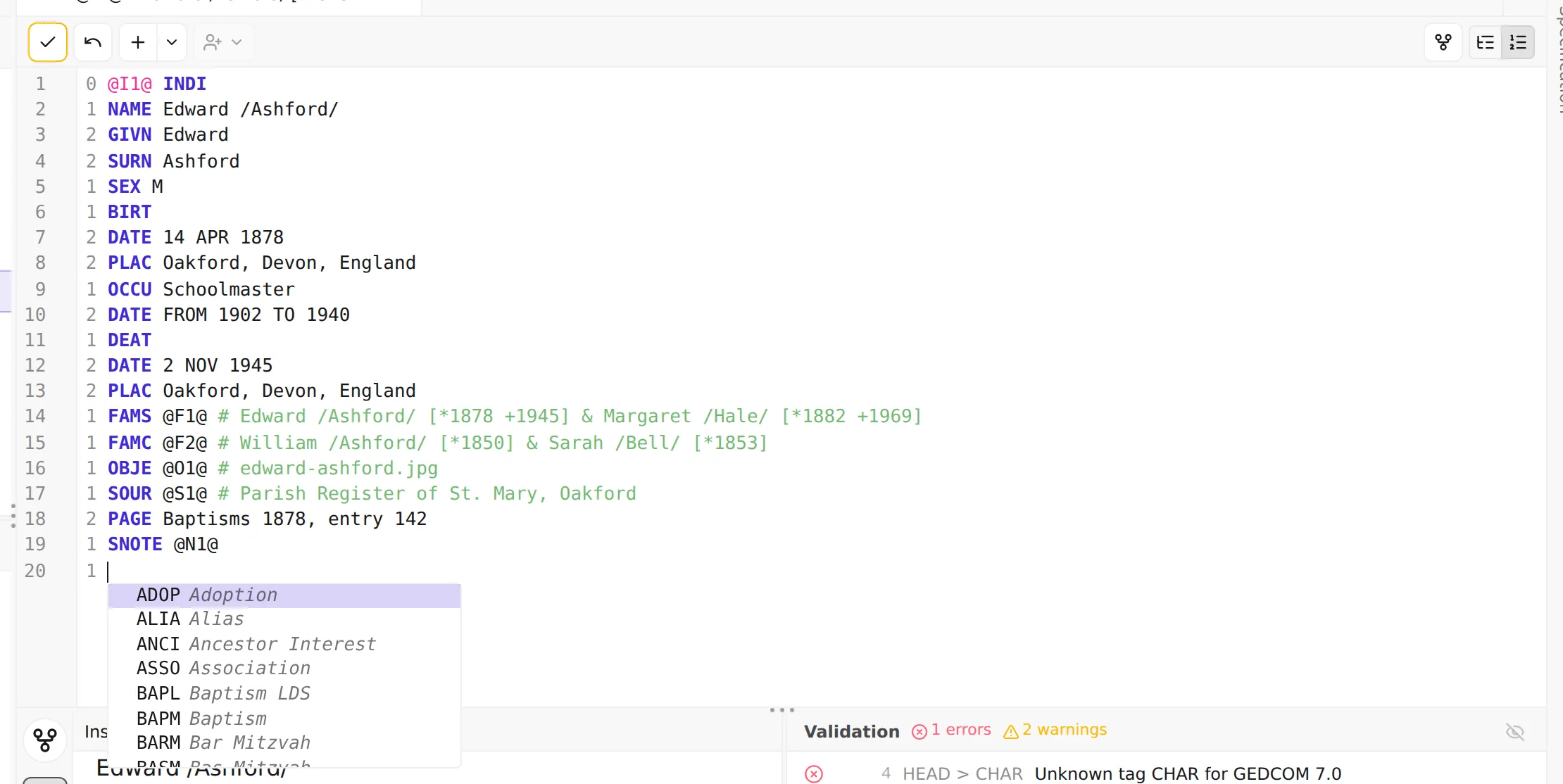
Three kinds of suggestions
Section titled “Three kinds of suggestions”Tags — what can I add here?
: Place the cursor where a new line’s tag goes and the editor offers the tags that are valid at that
level, under that parent, for your file’s version. Inside a person you’ll be offered NAME,
BIRT, SEX, FAMC, and so on; tags that wouldn’t be valid there — or that you’ve already used as
many times as the spec allows — aren’t offered. Each suggestion comes with a short description of
what the tag means.
Values — what may this tag hold?
: For tags whose value is drawn from a fixed list, the editor offers the allowed choices. Typing a
SEX value suggests M, F, U (and X in GEDCOM 7.0); a PEDI (pedigree) value offers its
defined options; and so on. No guessing at the exact spelling the spec expects.
Cross-references — which record do I mean?
: When you’re writing a pointer — linking a child to a family, a citation to a source — type @ and
the editor lists the matching records by their cross-reference ID and a human label (a person’s
name and dates, for instance), so you can pick the right one by name instead of memorising IDs. Keep
typing to filter by ID or by name.
Using it
Section titled “Using it”- Suggestions appear as you type. For tags, you can summon the list at any time with Ctrl+Space — the same on macOS and Windows / Linux.
- Accept the highlighted suggestion with Enter or Tab; move through the list with the arrow keys.
- Dismiss the list with Esc.
Autocomplete works the same in both structured and raw modes.
Autocomplete and the spec viewer
Section titled “Autocomplete and the spec viewer”Autocomplete answers “what can I type here?” When you want the other half — “what does this tag actually mean, and how is it structured?” — look it up in the embedded spec viewer. The two are designed to work together: the editor proposes valid options; the spec viewer explains them.
Next: follow a pointer to the record it links to — Reference resolution & navigation →.