Saving & exporting your project
Your project lives on your own device while you work on it. Saving writes your changes to that local storage; exporting produces a portable file you can take anywhere — the whole point of a GEDCOM-centric tool. This page covers both, plus the guard that keeps you from losing work.
Saving your work
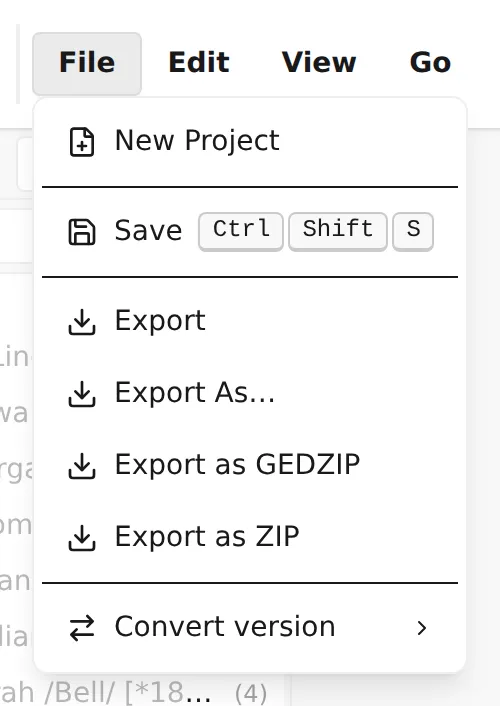
Section titled “Saving your work”Saving is explicit — Linea Codex doesn’t autosave, so you decide when your work is committed to disk. Use File → Save, or press Shift+Cmd+S (Shift+Ctrl+S on Windows / Linux). Saving is available once a project is open, in the workspace.
There are two layers to “unsaved”, and it helps to know the difference:
- Pending edits in a record — text you’ve typed in the editor but not yet applied. A tab with pending edits is marked as having Unsaved changes. See Apply, discard & undo.
- Applied-but-not-saved changes — edits you’ve applied to the tree but not yet written to disk with Save.
Saving handles the second layer. Your data never leaves the device either way — see Where your data lives.
The unsaved-changes guard
Section titled “The unsaved-changes guard”If you try to leave the workspace — navigating away, or closing the tab — with work that isn’t safely saved, Linea Codex stops you rather than letting changes slip away. Depending on what’s outstanding, it offers to:
- Apply or discard any records with pending edits before continuing (Apply or discard unsaved drafts?), and
- Save the project to disk before you leave (Save project to disk before leaving?).
You can always Cancel and stay put. The aim is simple: you shouldn’t lose work by accident.
Exporting a GEDCOM file
Section titled “Exporting a GEDCOM file”Exporting writes your project back out as a standalone .ged file — the same open format you imported,
ready to open in any other genealogy program.
- File → Export writes the file using your project’s current encoding.
- File → Export As… lets you choose the output encoding first (see below).
Export is available in the workspace once your project has content.
Choosing the output encoding
Section titled “Choosing the output encoding”The encoding your file was imported with stays fixed inside the project — but when you export, you can write the file in a different encoding to suit wherever it’s headed. The export dialog lets you pick a target encoding and checks every character against it, telling you either All characters are compatible or exactly which characters can’t be represented (so you can choose a fuller encoding such as UTF-8 instead). Your project’s internal encoding is left unchanged.
You usually don’t need to think about this — but if you do, the mechanics are in Encoding & ANSEL.
Exporting a full archive (with media)
Section titled “Exporting a full archive (with media)”A bare .ged file references your photos and documents but doesn’t contain them. To move or back up a
project with its media in one bundle, export an archive:
- File → Export as ZIP — bundles the GEDCOM file plus all of its local media. Works with any GEDCOM version.
- File → Export as GEDZIP — the standard GEDCOM 7.0 archive format, bundling the file (as UTF-8) plus its media.
If some referenced files can’t be included — they’re missing, remote, or use absolute paths — Linea Codex tells you how many were left out. To bring an archive back later, use Import on the start page.
A note on line length
Section titled “A note on line length”GEDCOM wraps long text values across continuation lines. The wrap point is controlled by the Maximum line length setting (Settings → Records), which applies when your file is serialised on save and export. The default is the specification maximum of 255; a lower value can make files diff more cleanly when round-tripping through other tools.
That completes the core of Using Linea Codex. To go deeper, explore the editor, the pedigree view, or the GEDCOM Cookbook for task-by-task recipes.