Bulk transforms
Some edits are the same change made over and over: renaming a custom tag across hundreds of people,
adding a missing TYPE to every event of one kind, rewriting a value that was entered in the wrong
format throughout the file. Doing those by hand is slow and error-prone. The transform panel lets
you describe the change once — which nodes to match and what to do to them — preview it on a real
sample, and then apply it everywhere it matches. It’s the headline tool for bulk fixes, and the
remedy the validation panel points you to for anything broader than a single
spot-fix.
Open it from the menu bar: Edit → Transform Nodes…. There’s no keyboard shortcut.
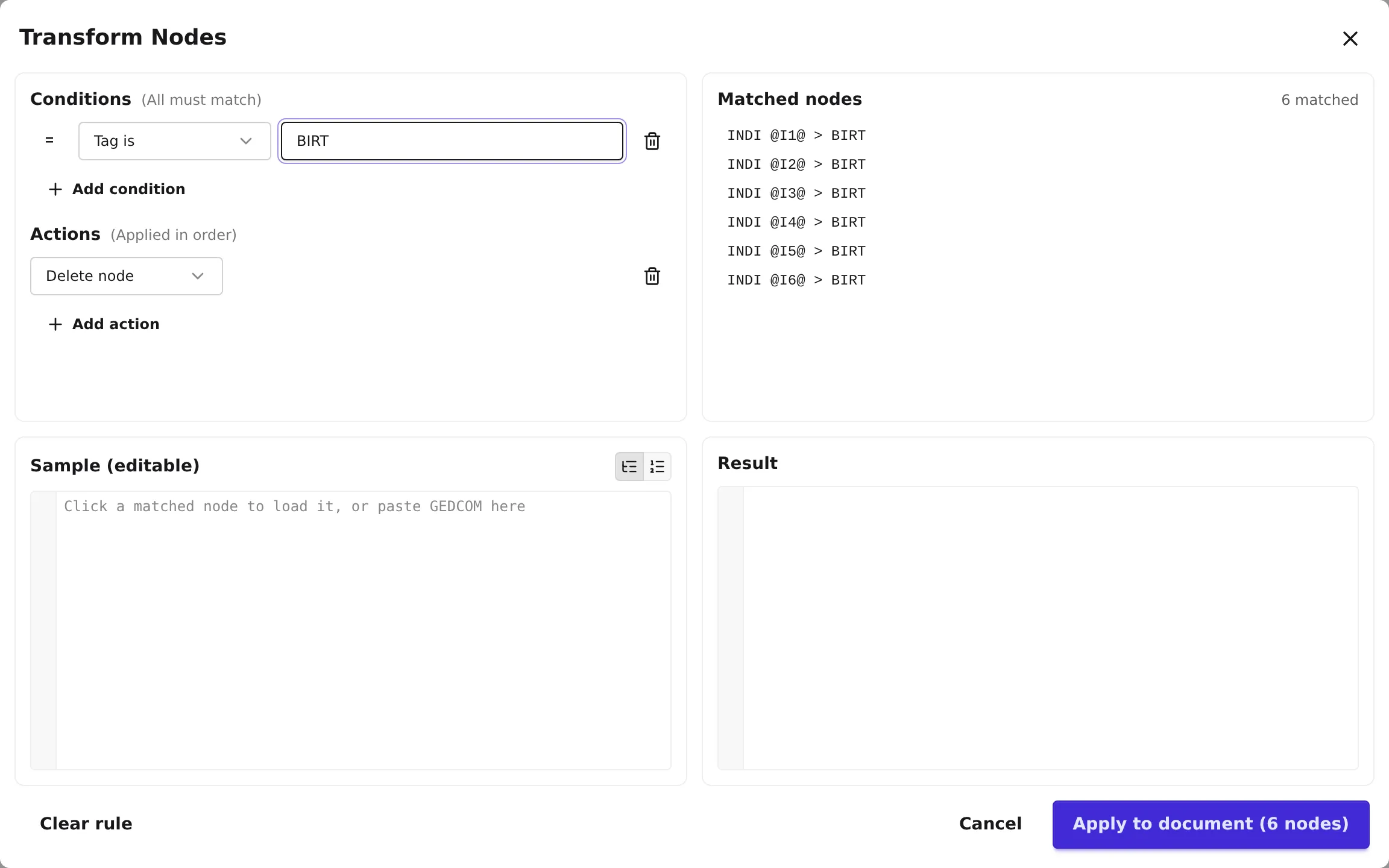
How the panel is laid out
Section titled “How the panel is laid out”The panel is a single dialog with four quadrants:
- Top-left — the rule. Two stacked sections: Conditions (which nodes to match) and Actions (what to do to them).
- Top-right — Matched nodes. A live count and a sample list of the nodes your conditions currently match across the whole document.
- Bottom-left — Sample (editable). A scratch pad of GEDCOM you can preview against. Click a matched node to load it here, or paste your own snippet.
- Bottom-right — Result. The sample after the rule is applied — your live preview, updated as you type.
Nothing is changed in your project until you press Apply; everything above the bar is a dry run.
Step 1 — describe what to match (conditions)
Section titled “Step 1 — describe what to match (conditions)”Conditions are exactly the same as in advanced search — they share one matching engine. The heading reads Conditions, with the hint All must match: every condition you add is combined with AND.
| Condition | Label in the app | What it matches |
|---|---|---|
| Tag is | Tag is | A node whose tag is exactly what you type — e.g. BIRT, FILE. |
| Has a value | Has a value | Any node that carries a value at all. |
| Value matches | Value matches | A node whose value matches a regular expression. |
| Has child | Has child | A node with a direct child of the tag you name. |
| Parent tag is | Parent tag is | A node whose immediate parent has the tag you name. |
Each row has a = / ≠ toggle: flip it to ≠ to negate the condition (must NOT match). Use Add condition to stack rows. As soon as your conditions resolve, the Matched nodes list shows what they’d hit — you can click any sample to load it into the editable pane and see it for yourself.
Step 2 — describe the change (actions)
Section titled “Step 2 — describe the change (actions)”Below the conditions, add one or more Actions (hint: Applied in order). Each is a row with a kind and, for most kinds, one or two fields to fill in:
| Action | Label in the app | What it does |
|---|---|---|
| Delete node | Delete node | Removes the matched node (and its subtree). |
| Set value | Set value | Replaces the node’s value with the text you give. |
| Clear value | Clear value | Empties the node’s value, leaving the tag. |
| Wrap value in child | Wrap value in child | Moves the node’s value down into a new child with the tag you name. |
| Rename tag | Rename tag | Changes the node’s tag to a new one. |
| Add child | Add child | Adds a new child node with the tag (and optional value) you give. |
| Remove children with tag | Remove children with tag | Deletes the matched node’s direct children that carry a given tag. |
| Replace in value | Replace in value | Find-and-replace within the value using a regular expression. |
| Copy child value up | Copy child value up | Copies the value of a chosen direct child up onto the matched node’s own value (overwriting it). The child is left in place. |
| Copy value to child | Copy value to child | Copies the matched node’s value down into a child with the tag you name, creating that child if it’s missing. The node keeps its value. |
| Rename child tag | Rename child tag | Renames every direct child tagged from to to, keeping each child’s value and subtree. |
| Promote children (unwrap all) | Promote children (unwrap all) | Unwraps every direct child with the given tag — lifts that child’s own children up one level into the matched node and drops the now-empty wrapper. |
| Flatten first child | Flatten first child | The same unwrap as Promote children, but acts only on the first matching child. |
| Nest child under another child | Nest child under another child | Moves a direct child (with its whole subtree) and re-attaches it beneath a sibling child. |
Replace in value takes a Find (regex) pattern and a Replace with string; it runs as a
JavaScript regular expression with the global flag, and capture groups ($1, $2) are supported. Add
more actions with Add action; they apply top-to-bottom in order.
The last six actions restructure a node’s children rather than change a single value — the tools for a record whose data sits at the wrong level. Most take one child tag; two take a pair — Rename child tag needs a from and a to tag, and Nest child under another child needs the child to move plus the sibling to nest it under. Note that Promote children and Flatten first child discard the wrapper’s own value when they unwrap it, so pair them with another action if you need to keep it. A common two-step recipe is Copy child value up followed by Remove children with tag: lift a child’s value onto its parent, then delete the now-redundant child.
A required field left empty, or a regular expression that’s invalid, unsafe, or too long, is outlined in red and keeps Apply disabled until you fix it — the same check the app runs before it touches your document, so the panel never silently applies a broken rule. The matched-node list and the sample flag the same problems inline, so you can see why a rule isn’t matching before you commit.
Step 3 — preview before you commit
Section titled “Step 3 — preview before you commit”This is the safety net. Pick a node from Matched nodes (or paste a snippet) into the Sample (editable) pane, and the Result pane shows it transformed in real time — the same edit your Apply will make, run on real data, before anything is touched. The stats line at the bottom reports how the rule does against the sample (Matched and Modified counts), and a parse error in the sample is flagged inline rather than silently applied.
A live preview means you can iterate on a tricky regex or a multi-step rule until the result looks exactly right, all without changing your project.
Step 4 — apply across the document
Section titled “Step 4 — apply across the document”When you’re satisfied, press Apply to document (N nodes) — the button names how many nodes match. The rule runs over the entire document, and a toast confirms how many nodes were modified. If your conditions happened to match nothing changeable, you’ll be told No changes instead.
Coming in from a validation quick-fix
Section titled “Coming in from a validation quick-fix”You don’t always start from a blank panel. Some validation issues offer a
quick-fix that hands off to the transform panel pre-loaded with a rule — for example, resolving a
broken FILE reference opens the panel with the matching conditions and action already filled in, so
you can review the rule, tweak it, preview it, and apply it across every record with the same problem
rather than fixing them one at a time. That hand-off is exactly the “headline bulk-fix path” the
validation chapter steers you toward.
(Occasionally a rule’s shape is too complex to display in the row-based editor; in that rare case the panel opens blank with a note saying so, and you can rebuild the parts you need.)
A one-click sibling: Renumber Cross-References
Section titled “A one-click sibling: Renumber Cross-References”The rule builder isn’t the only document-wide command in the Edit menu. Edit → Renumber
Cross-References is a single-click operation that rewrites every cross-reference id in the file —
@I1@, @F1@, @S1@, and the rest — into a clean, sequential sequence, updating every pointer that
refers to them at the same time so no link breaks. It’s the tidy-up for a file whose ids have grown
gappy or out of order after a lot of adding and deleting.
There’s no rule to build and no preview: pick the command, watch a brief Renumbering Cross-References progress bar on a large file, and read the result in a toast — Renumbered N cross-references, or Cross-references are already sequential if nothing needed changing. Because every id may shift, the command refreshes the open record and re-runs validation when it finishes.
Two things worth keeping straight:
- A cross-reference id is local to the file and deliberately renumberable — it is not a stable
identifier. When you need an id that survives across programs and edits, use
REFN, orUID/EXIDin 7.0 — see Give a record a stable identifier. - Version conversion also renumbers cross-references as part of moving a file between 5.5, 5.5.1, and 7.0 — so a freshly converted file already has tidy ids without running this command separately.