Looking things up: the spec viewer
Genealogy software hides GEDCOM from you. Linea Codex puts it within reach — and the spec viewer is how. It’s the full GEDCOM specification, browsable inside the app, so when you hit a tag you don’t recognise or a structure you’re not sure how to build, you can look it up without leaving your work. It’s the bridge between the app’s controls and the GEDCOM grammar underneath them: the editor’s autocomplete answers “what can I type here?”, and the spec viewer answers “what does this tag mean, and what is its valid structure?”
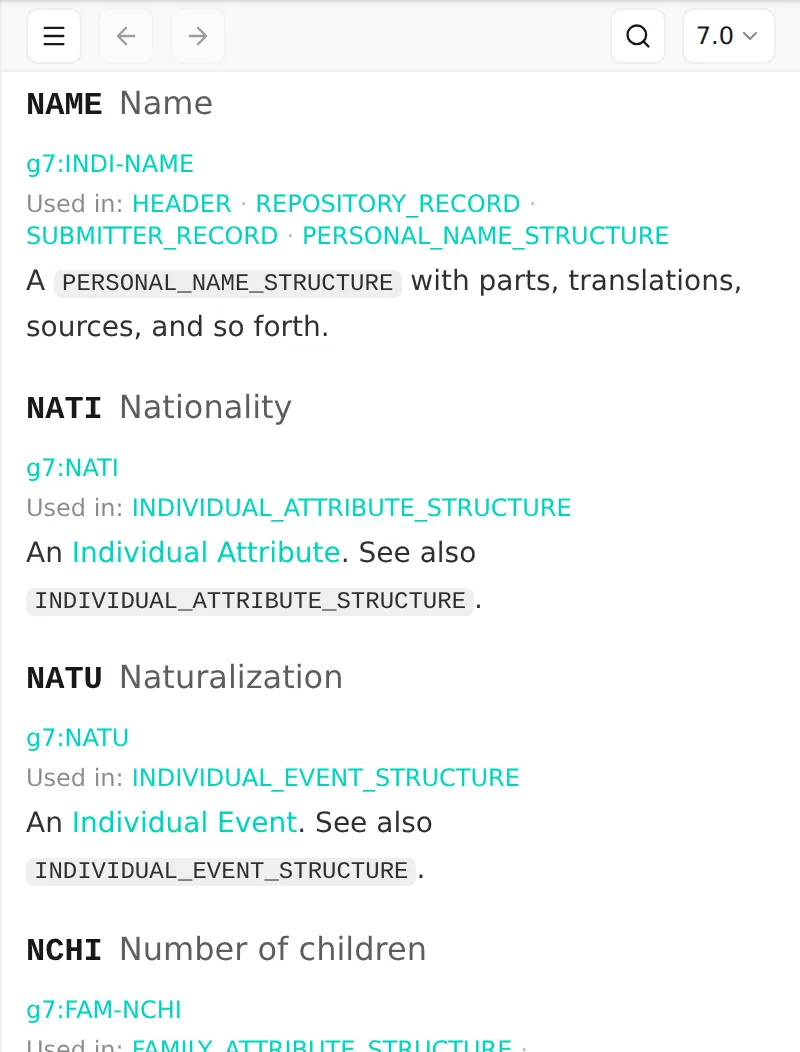
Opening the viewer
Section titled “Opening the viewer”The spec viewer lives as a dockable panel on the right of the workspace, and it’s closed by default so it stays out of your way until you want it. Two ways to bring it up:
- From the menu — choose View → Specification. This toggles the right-hand panel open (and the same item closes it again).
- From a tag in the editor — right-click a line in the editor and choose Show in Specification, or put your cursor on the line and press F1. The panel opens and jumps straight to that tag’s entry. This is the fastest path: you’re reading a record, you meet an unfamiliar tag, one keystroke tells you what it is.
There’s also a full-page version for when you want to read the spec on its own, away from a project: open Help → Specification from the toolbar. It’s the same viewer, just given the whole window.
Drag the panel’s left edge to make it wider or narrower; Linea Codex remembers the width.
Finding your way around
Section titled “Finding your way around”The viewer mirrors the structure of the real GEDCOM document, with a few tools to move through it:
- Table of contents — a collapsible tree down the side. Click the table-of-contents button to show or hide it; click any entry to jump to that section. As you scroll, the contents tree expands and highlights to track where you are.
- Search — press Ctrl+F (or click the search button) to open a Search specification… box. Matches are highlighted as you type, with a “3 of 42” counter and Previous match / Next match buttons to step between them. Press Esc or the close button to clear it.
- Back and forward — every jump you make (a search result, a contents click, a cross-reference) is recorded, so Back and Forward buttons — or Alt+Left / Alt+Right — retrace your path. Handy when you follow a chain of structures and want to come back.
Cross-references: following the grammar
Section titled “Cross-references: following the grammar”GEDCOM is a web of structures that nest inside one another, and the spec viewer lets you walk that web by clicking. The entries are linked to each other:
- A tag’s entry lists, under Used in:, the structures the tag appears in — click one to jump to that structure’s definition.
- A structure’s entry lists, under Used in:, its parent structures — the structures that can contain it — so you can climb outward toward the top-level record.
- Inside a structure’s grammar block, every tag is itself a link to that tag’s entry.
Following any of these is a navigation, so Back always returns you to where you came from. This is how you answer “what can go inside this?” and “where is this allowed?” — by reading the structure and walking its links, rather than guessing.
Version-aware and localized
Section titled “Version-aware and localized”GEDCOM is not one specification but several, and a tag valid in one version may be absent or reshaped in another. The spec viewer is version-aware: a version selector in its toolbar switches between GEDCOM 5.5, GEDCOM 5.5.1, and GEDCOM 7.0, and the whole document — definitions, grammar, cross-references — re-loads for the chosen version.
When you open the viewer from a project, it tracks the open document’s version automatically, so you’re always reading the spec that matches the file you’re editing. (Open a tag from the editor with Show in Specification and it resolves against your document’s version, even if you’d transiently switched the panel to another.) The standalone full-page viewer remembers your last chosen version instead, since it has no document to follow.
The viewer is also localized: its chrome — buttons, labels, the table of contents — follows your interface language. Where a translated specification is available for your language, the prose itself is shown translated; where it isn’t, the viewer quietly falls back to English rather than showing an error or a gap.
Next: The Editor →